Get connected
This section describes how several users can connect to the same Mixer server using a LAN or through the Internet.
Tip
It is recommended that you try Mixer locally before you attempt to connect on a network.
Whatever the network type, one user will have to create a server that the other users can connect to.
On a LAN
Host a Server
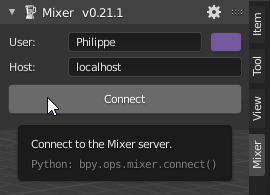
Open the Mixer panel in the 3D editor, check that the Host text box contains localhost then click on the Connect button.
If you are using Windows and starting a server for the first time, the firewall will prompt you to allow access for Python like in the image below.
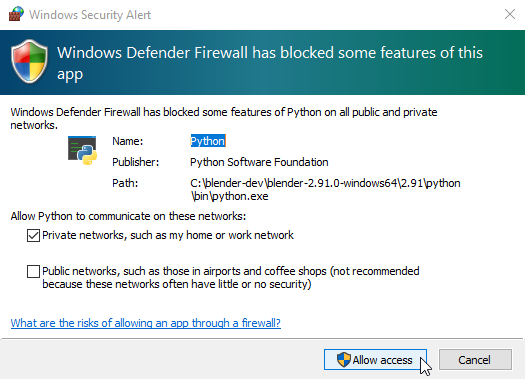
Important
Make sure to allow access for private networks.
Your machine is now hosting a Mixer server and the panel changes to :

The server is now ready. Find out the IP address of your machine and communicate it to the other participants.
Connect to a Server
Start Blender and open the Mixer panel in the 3D editor.
In the Host text box, replace localhost by the IP address of the machine that hosts the server,, which is 192.168.0.48 in the example below, then click on the Connect button.
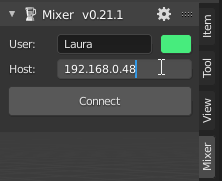
The panel now lists the room created on the server. Click on Join Room.

You are ready to collaborate with your colleagues or friends.
On the Internet
With a hosted VPN
VPN software like Hamachi, Zerotier and others can be used to execute a Mixer session over the Internet. The overall process is as follows:
all participants:
download, install and start the VPN software using the VPN software instructions
one participant:
creates a VPN network using the VPN software instructions
starts Blender, open the Mixer panel, leaving
localhostin the panel Host text box, then click Connect to create a serverfinds the VPN address of his machine and communicate it to others
the others:
connect to the VPN network using the VPN software instructions
start Blender, open the Mixer panel and fill the Host text box with the VPN address of the server.
Hamachi
TODO
Other VPN software
Mixer has been reported to work successfully with other VPN software:
OpenVPN and portmap.io : some details in this issue
With port forwarding
Collaborating over the Internet without a VPN may require to setup port forwarding and is more involved.
On the network that hosts the server
The user who creates the server must setup a TCP port forwarding rule on his router:
on the machine that hosts the server:
setup and start a Mixer server. Keep
localhostas the value in the Host text box.find the IP address of the machine that hosts the server, say
192.168.0.10
on the router:
find the public IP v4 address of the router using the router administration tool or http://whatismyip.host/. You will need to share this address with other participants Say you found the public IP v4 address of your router is
203.0.113.17setup a TCP port forwarding rule to the machine that hosts the server (
192.168.0.10in our example), and the TCP port used by Mixer (12800by default).check or edit the value of the public forwarded port:
If the public forwarded port can be set to
12800, use this value. This setup creates a TCP port forwarding rule from203.0.113.17:12800to192.168.0.10:12800.If the public forwarded port cannot be set to
12800, configure it to a permitted value, say9090. This setup creates a TCP port forwarding rule from203.0.113.17:9090to192.168.0.10:12800
On the other users locations
Start Blender and open the Mixer panel in the 3D editor.
In the Host text box, replace
localhostby the public address of the router on the server location, (203.0.113.17in our example).
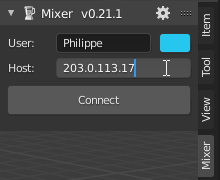
If the public forwarded port is not
12800:Open the Mixer preferences using the Mixer panel title bar setings icon
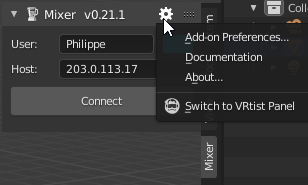
in the Port text box type the public forwarded port number,
9090in our example
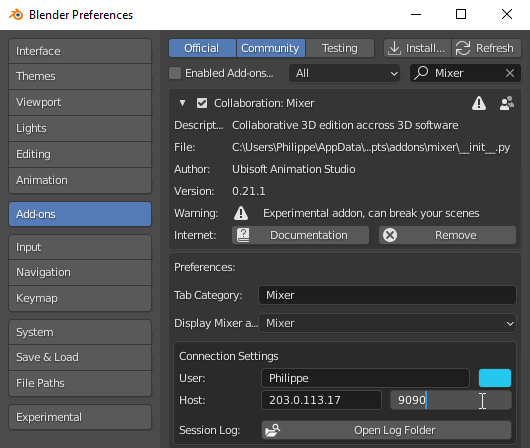
close the preferences windows
in the Mixer panel, click on the Connect button.
You are ready to collaborate with your colleagues or friends.